Learn how to set up membership tiers, automate renewals, and track engagement—all in CiviCRM.
Overview
Turning one-time donors into recurring members is one of the most effective ways to build sustainable revenue for your non-profit. But implementation can feel overwhelming.
This guide walks you through three critical components of CiviCRM membership management:
- Price Set Setup – Create flexible membership tiers
- CiviRules Automation – Set up automated renewal reminders
- Dashboard Templates – Track member engagement effectively
Whether you’re just getting started with CiviCRM or looking to optimize your existing setup, this guide will help you build a membership system that works for your organization.
1. Price Set Setup for Membership Tiers
A Price Set is a grouping of pricing fields that allows you to create flexible, customizable membership signup forms. Think of it as your “menu” of membership options.
| Feature | Simple Membership Type | Price Set |
| Membership Options | One per page | Multiple on one page |
| Pricing Flexibility | Fixed pricing only | Add-ons, discounts, bundles |
| Mixed Items | Memberships only | Combine with donations or merchandise |
| Bulk Signups | One at a time | Multiple memberships in one transaction |
Step 1: Navigate to Price Set Manager
Go to Administer → CiviContribute → Manage Price Sets and click Add Set of Price Fields.
Step 2: Configure the Price Set
| Field | Recommendation | Why |
|---|---|---|
| Price Set Title | “Membership Options [Year]” | Shown to users and admins |
| Used For | Membership | Can also be used for Events and Contributions |
| Default Financial Type | Member Dues | Links to your accounting |
| Pre/Post Help | “Choose the membership that fits you best” | Guides the user |
Step 3: Add Membership Tiers
Here’s how to set up a three-tier membership structure:
Field Label: "Membership Type"
Input Field Type: Radio
Required: Yes
Add your three options:
| Option Label | Membership Type | Amount |
|---|---|---|
| Supporter | Basic Membership | $10/month |
| Advocate | Premium Membership | $25/month |
| Champion | Patron Membership | $50/month |
Pro Tip: When you select a specific membership type from the dropdown, the amount auto-fills based on your Membership Type configuration. This saves time and ensures consistency.
Step 4: Add Non-Membership Options
This is where Price Sets shine. Add optional fields that increase your average revenue per member:
Option A: Add a Donation Field
Field Label: "Add a donation to support our mission"
Input Field Type: Text/Numeric Quantity
Unit Price: 1
Display Amount: No
This allows members to add “any amount” donations alongside their membership.
Option B: Add Merchandise or Upgrades
Field Label: "Choose your bonus item"
Input Field Type: Checkbox
Options:
  - "Receive our annual report" (+$0)
  - "Get exclusive member pin" (+$5)
  - "Monthly newsletter subscription" (+$3)
Step 5: Test Before Going Live
Price sets can be configured in many ways. Always test thoroughly before using on your live site to make sure you’ve configured it correctly.
2. Automated Renewal Reminders Using CiviRules
CiviCRM offers two main automation tools:
| Feature | Scheduled Reminders | CiviRules |
|---|---|---|
| Flexibility | Limited to date-based triggers | Any event can trigger action |
| Complexity | Simple workflows only | Complex, multi-step workflows |
| Best For | Simple date reminders | Advanced automation workflows |
Step 1: Install Required Extensions
- CiviRules (core functionality)
- Email API extension (to add email actions)
Step 2: Create Your Renewal Reminder Rule
Here’s a complete workflow for membership renewals:
| Component | Setting | Why |
|---|---|---|
| Trigger | Activity added | Detects when a membership is created or renewed |
| Condition 1 | Activity is of type “Membership Renewal” | Ensures you’re responding to renewals |
| Condition 2 | Membership expires in X days | Only triggers for members approaching expiration |
| Action | Send Email | Sends personalized renewal reminder |
For maximum retention, set up a 3-email renewal sequence:
| Timing | Content Focus | |
|---|---|---|
| Reminder 1 | 30 days before expiry | “Here’s what you’ve enjoyed this year…” |
| Reminder 2 | 14 days before expiry | “Don’t lose your benefits. Renew now.” |
| Final Notice | 7 days after expiry | “Your membership has expired. Here’s how to reactivate.” |
A Word on Auto-Renew
CiviCRM offers auto-renew functionality that automatically submits a repeat transaction when a membership expires. However, this is not available for all payment processors, so check your processor’s configuration before enabling this feature.
For organizations that can’t use auto-renew, CiviRules-based reminders are your next best option.
3. Dashboard Templates for Tracking Member Engagement
Once someone becomes a member, the real work begins. The goal is retention, not just acquisition.
A self-serve member dashboard with a resource center can help achieve increased retention rates and active member engagement.
CiviCRM comes with several pre-built membership reports:
| Report | What It Shows | Best For |
|---|---|---|
| Membership Summary | Count of members by type and join date | Executive overview |
| Membership Detail | List of members with status and dates | Staff operations |
| Membership Lapsed | Members whose membership has or will lapse | Renewal campaigns |
| Membership Contribution | Financial tracking linked to members | Fundraising analysis |
Using SearchKit (No-Code Approach)
SearchKit allows you to build custom dashboards without writing code. Here’s what a high-performing member dashboard should track:
Section 1: Membership Health
| Metric | What to Track | Action if Low |
|---|---|---|
| New Members | This month vs. last month | Increase acquisition efforts |
| Renewal Rate | % of members who renew | Review benefits and communication |
| Membership Types | Distribution across tiers | Adjust pricing or benefits |
| Upcoming Renewals | List of members expiring soon | Launch targeted campaigns |
Section 2: Engagement Metrics
| Metric | What to Track | Action if Low |
|---|---|---|
| Event Attendance | % of members attending events | Improve event offerings |
| Email Open Rate | Engagement with your communications | Review subject lines and content |
| Donation Frequency | How often members donate extra | Optimize donation appeals |
| Resource Access | What content members actually use | Improve content strategy |
Section 3: Financial Dashboard
| Metric | What to Track | Action if Low |
|---|---|---|
| Average Revenue Per Member | Total revenue ÷ active members | Upsell opportunities |
| Lifetime Value | Total revenue over member lifetime | Identify high-value segments |
| Donation Rate | % of members who donate | Create donation appeals |
Step 1: Create Saved Searches
Use CiviCRM’s advanced search to create saved searches for:
- Members expiring in 30 days
- Members in grace period
- Top 10% donors
- Inactive members
Step 2: Add Reports as Dashboard Widgets
CiviCRM allows you to add report widgets to your dashboard for quick reference. These can be shared with your team or restricted by user role.
Step 3: Set Up Automated Email Reports
Schedule reports to be sent automatically at regular intervals to your team. This ensures key metrics are top-of-mind.
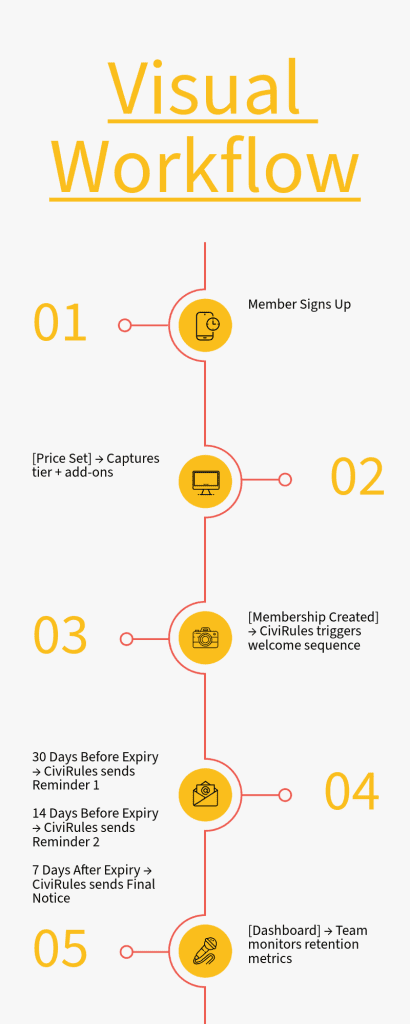
Putting It All Together: The Complete Workflow
Here’s how these three pieces work together in a complete membership system:
- Price Set → New member visits your site, chooses a membership tier and optional add-ons, and pays online.
- CiviRules → When the membership is created, CiviRules triggers a welcome sequence. Then, 30 days before expiration, the automated renewal reminder sequence begins.
- Dashboard → Your team monitors key metrics—renewal rates, engagement levels, and revenue per member—and adjusts strategy accordingly.
Ready to Implement?
Here’s how I can help:
| Service | What’s Included |
|---|---|
| Price Set Setup | Custom tier configuration, testing, and deployment |
| CiviRules Automation | Renewal sequence design, testing, and optimization |
| Dashboard Creation | Custom report setup, widget configuration, and training |
| Full Implementation | Complete membership system setup from start to finish |
Or Get Started Yourself
If you prefer to implement this on your own, here are your next steps:
- Review your membership tiers – What benefits can you offer at each level?
- Plan your renewal sequence – What emails will you send and when?
- Define your key metrics – What does success look like for your organization?
- Test everything – Run through the entire workflow before going live
Resources
- CiviCRM Documentation: Price Sets
- CiviCRM Documentation: CiviRules
- CiviCRM Documentation: Membership Reports
- CiviCRM Extensions Directory
Want help implementing this for your organization? Contact me for a free consultation.